What shipped in version 0.5.11
AI drafting
Board-level description presets that turn reusable prompts into consistent task description models.
Reporting
Expanded board reports, including quality and rework signals that help teams detect inefficiencies earlier.
Navigation
Board keyboard shortcuts for faster task creation, reporting, filtering, and assistant access.
This release is less about visual novelty and more about removing low-value repetition. The result is a board that captures better task context, exposes more operational signals, and lets heavy users move faster during the workday.
1. Description presets: faster task creation without generic templates
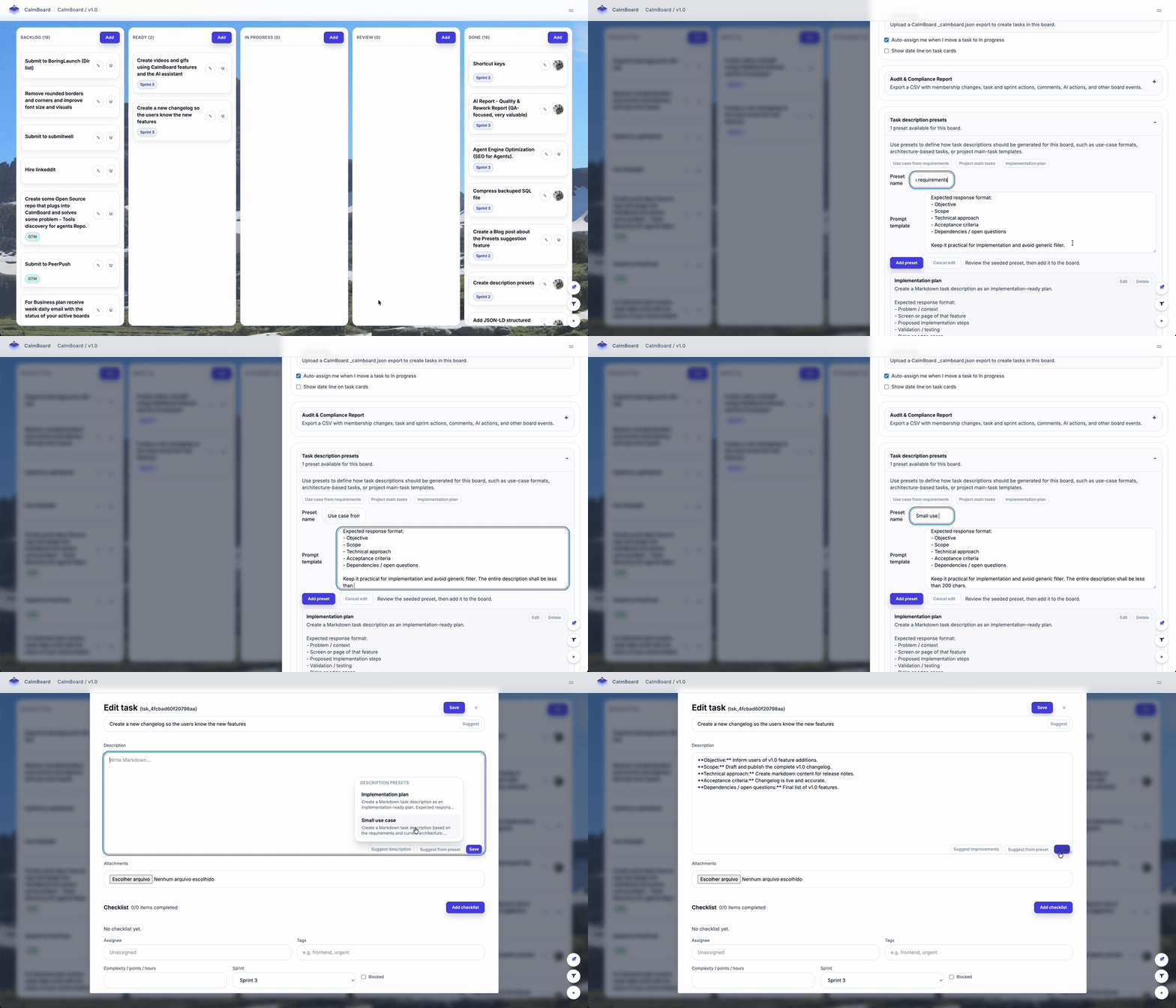
Teams often want consistency in task descriptions, but they do not all want the same structure. A discovery board might need a use case format. A delivery board might need acceptance criteria, dependencies, rollout notes, and validation steps. A platform board may want implementation-oriented breakdowns. Description presets solve that by letting the board define prompt templates once and reuse them whenever a task is created or edited.
Users create presets inside Board Settings, give each preset a short name, and define the response format or example. Then, while editing a task, they can choose Suggest from preset and generate a structured draft using the board’s preferred model.
Value for the client
The board becomes more predictable. Tasks are easier to understand, easier to hand over, and less likely to require clarification later.
Value for the team
People stop rewriting the same structure by hand. The first draft is faster, more complete, and aligned with the workflow of that board.
Where it helps most
Product discovery, implementation planning, QA-ready tickets, onboarding tasks, and any flow where quality depends on task clarity.
If you want a deeper walkthrough of how presets are created and used, the dedicated article Introducing Description Presets covers the full setup flow.
2. New reports: better visibility into quality, change, and delivery health
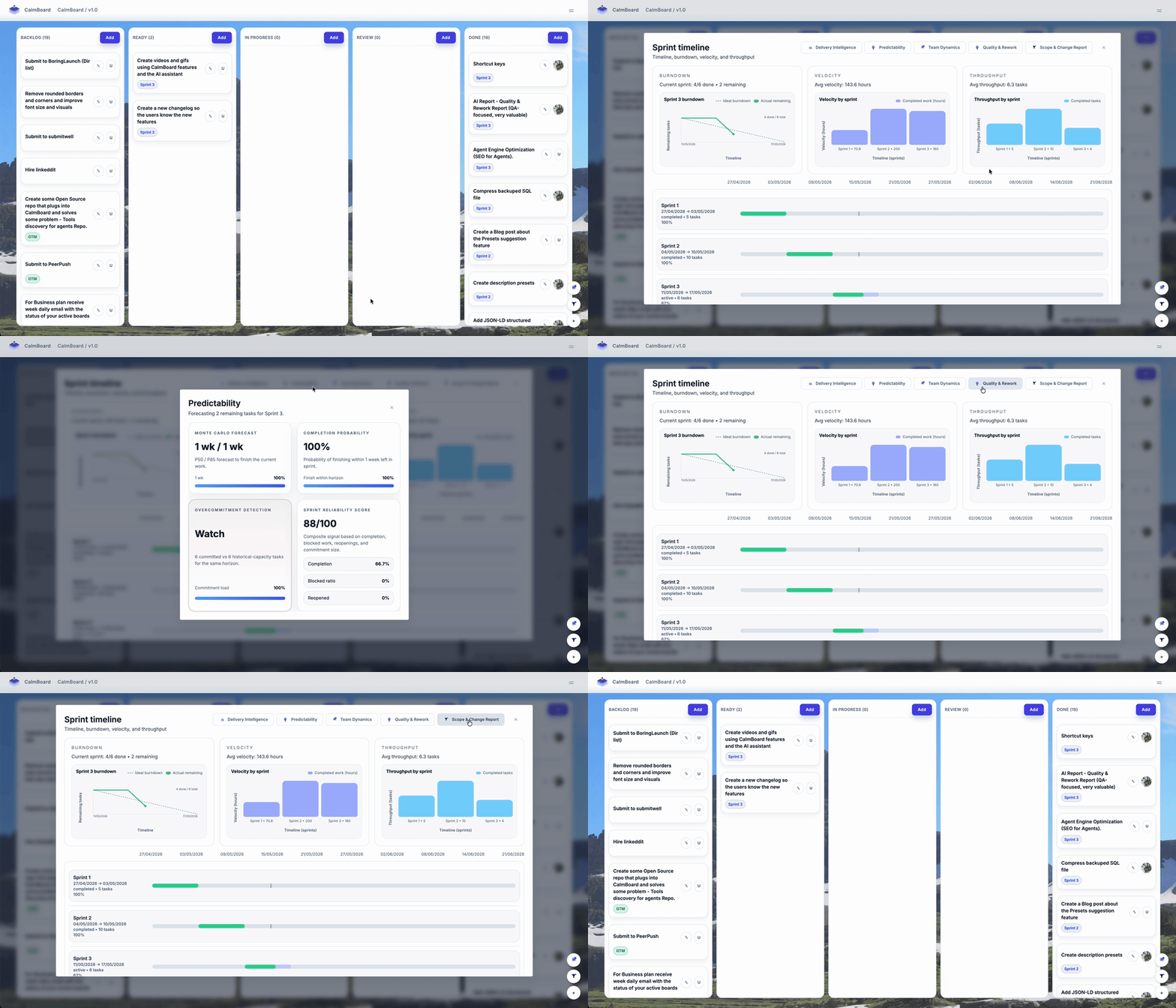
Version 0.5.11 expands the report experience in the board, with particular attention to how teams inspect rework and workflow instability. The new Quality & Rework Report highlights reopened tasks, tasks bouncing between columns, missing acceptance criteria, and recommended checklist improvements. This gives teams a clearer way to see not only what was completed, but what became expensive to complete.
This matters because rework usually shows up long before it becomes visible in a deadline slip. Reopened items, unclear requirements, and repeated review loops are early signals. By surfacing those signals directly in the reports panel, CalmBoard helps teams correct the system before the cost compounds.
Value for the client
Clients get a more honest picture of delivery quality. A team that ships and reopens less is usually a team with lower hidden cost and more reliable outcomes.
Value for the team
Teams can identify weak handoffs, fuzzy definitions of done, and unstable review loops before those patterns normalize.
Where it helps most
Sprint reviews, retrospectives, engineering quality discussions, and board cleanup efforts where rework keeps coming back.
Combined with the existing board metrics and the broader Scrum board features overview, this report set makes CalmBoard more useful as an operating system for delivery, not just a task list.
3. Keyboard shortcuts: less mouse travel, faster board operation
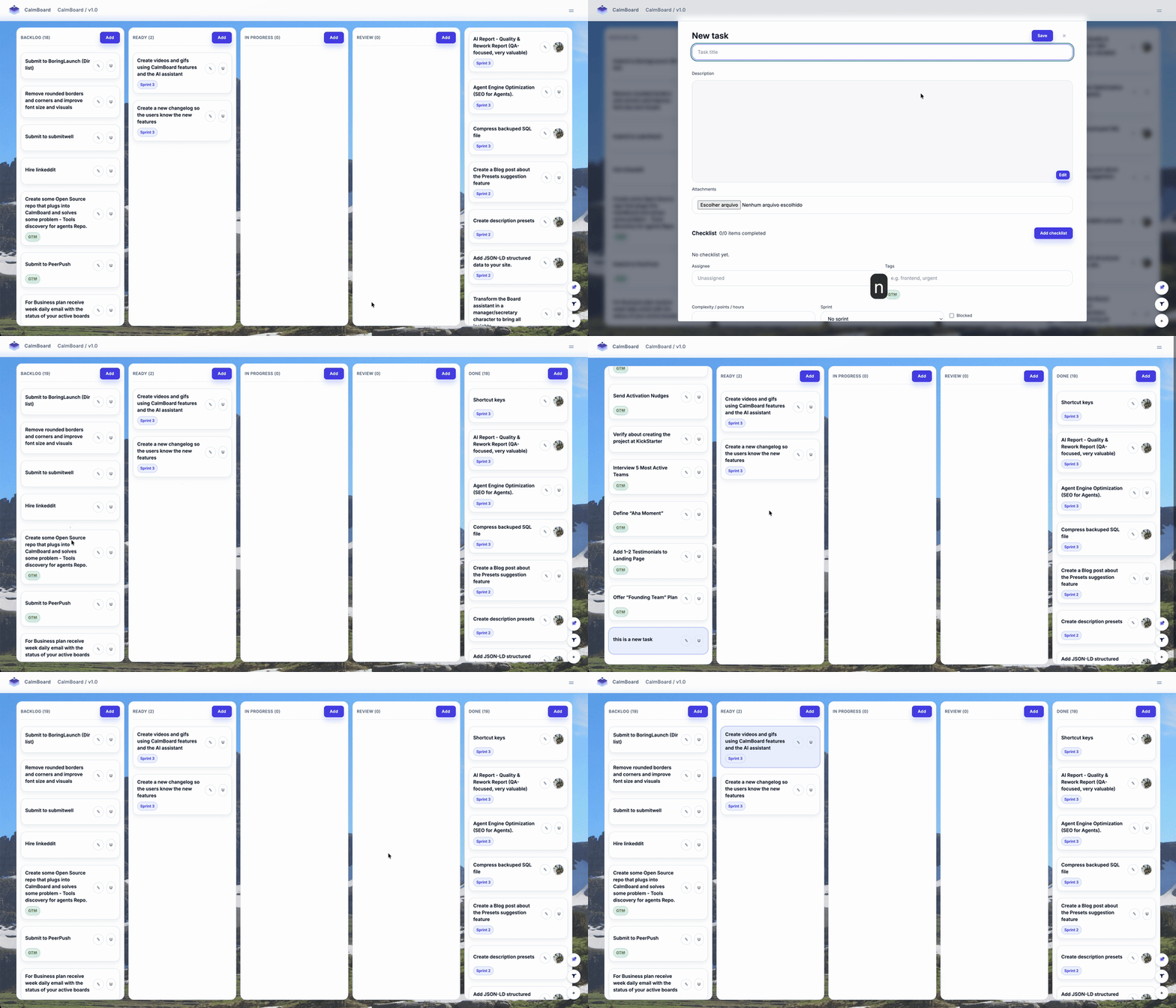
CalmBoard now includes board-level shortcut keys for common actions such as creating a task, editing a selected task, opening filters, opening reports, launching the Board Assistant, and navigating to pinned tasks, sprints, and board settings. There is also a visible shortcuts reference guide inside the board so the feature remains discoverable instead of hidden.
For frequent users, keyboard shortcuts are not a cosmetic addition. They reduce context-switching and help keep momentum during planning, triage, refinement, and review. The faster a person can move between “inspect”, “edit”, and “decide”, the more useful the board becomes as a daily workspace.
Value for the client
The board feels lighter and faster to operate, which increases adoption and reduces the feeling that process overhead is slowing delivery down.
Value for the team
Power users can create, inspect, report, and navigate without losing flow. That matters in standups, triage sessions, and focused execution time.
Where it helps most
Fast board maintenance, backlog refinement, sprint planning, and any workflow where the same handful of actions happen dozens of times per day.
Why these three features work well together
The biggest theme in 0.5.11 is not “more AI” or “more UI.” It is better operating leverage. Description presets reduce the cost of starting work. Reports reduce the cost of understanding work quality. Shortcut keys reduce the cost of moving through the board. Each one saves a different kind of time, and together they make the board more useful throughout the whole lifecycle of delivery.
- Before execution: presets help tasks start with clearer context and fewer ambiguities.
- During execution: shortcuts reduce friction and speed up the board routine.
- After execution: reports reveal where work quality and workflow still need improvement.
That pattern is important for teams that want AI-powered project management features to be practical rather than theatrical. CalmBoard is most useful when it reduces repetitive work, strengthens decision quality, and keeps the board readable for humans.
What to try first in your own board
- Create two description presets: one for implementation tasks and one for product or discovery tasks.
- Open the reports panel and review the Quality & Rework Report with the team during the next retrospective.
- Open the keyboard shortcuts modal and choose three shortcuts that your team will start using immediately.
If your team is already exploring how CalmBoard AI agents support better planning and follow-through, the article Values delivered by CalmBoard AI Agents is a good next read after this release note.
CalmBoard 0.5.11 in one sentence
CalmBoard 0.5.11 makes it easier to write better tasks, inspect delivery quality, and move faster across the board, which means less friction for the team and more confidence for the client.